In this article, we’ll show you how to add Polygon (MATIC) to MetaMask, which will allow you to use MetaMask to interact with the Polygon network just like you do with Ethereum.
After you add the Polygon network to MetaMask, you will be able to store and send Polygon-based tokens and seamlessly use decentralized applications deployed on the Polygon network.
The only thing you’ll need before you add Polygon to MetaMask is to install the MetaMask browser extension or mobile wallet. You don’t even need any tokens to get started, although having some MATIC tokens will be necessary if you want to make any kind of transaction on the Polygon network.
Key highlights:
- Before adding Polygon to MetaMask, ensure you have the MetaMask browser extension or mobile wallet installed, but no tokens are needed initially.
- The process to add Polygon to MetaMask involves selecting the Polygon network in the settings or adding it manually if it’s not listed.
- To add Polygon-based tokens, find the token’s contract address on a block explorer like PolygonScan and import it into MetaMask.
- Using Polygon with MetaMask is convenient, but for better security, it’s advisable to use it alongside a Ledger hardware wallet.
How to add Polygon to MetaMask?
Before we begin with the guide, we want to point out that while using Polygon with the MetaMask wallet is extremely convenient, it’s also not the best idea from a security point of view if you’re only using MetaMask software and not complementing it with a hardware wallet.
If you want to make your cryptocurrencies significantly safer, we recommend you get a Ledger hardware wallet. You can connect your Ledger wallet to MetaMask so you can enjoy the best of both worlds — the convenience of MetaMask and the security of Ledger.
Hardware wallets manufactured by Ledger are widely regarded as the safest and most reliable way to store Bitcoin and other crypto assets. As long as the seed phrase storage is handled with care, there’s no way that any malicious actor or software could endanger the safety of your crypto.
Buy a Ledger Hardware Wallet
Now, let’s get started with our detailed guide to adding the Polygon network to your MetaMask wallet.
- Go to the “Settings” section of your MetaMask wallet
- Choose the Polygon network
- (Optional) Add the Polygon network manually
- Import any custom Polygon-based tokens you would like to use
1. Go to the “Settings” section of your MetaMask wallet
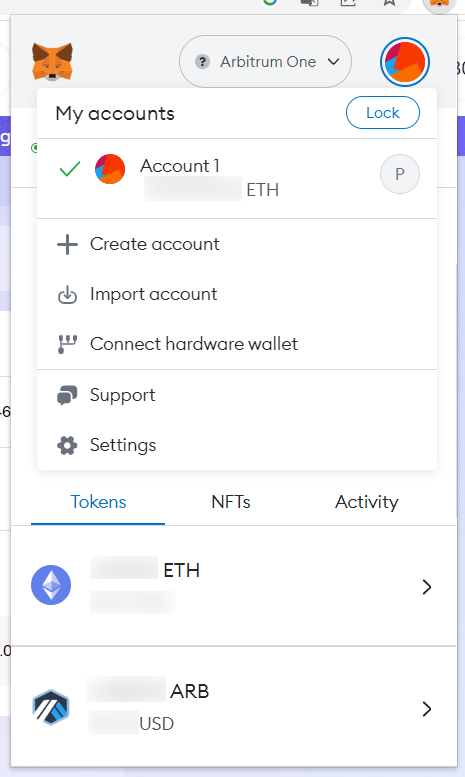
Open up your MetaMask wallet, and then click the profile icon on the top right of the user interface. Then, select “Settings” from the drop-down menu that appears.
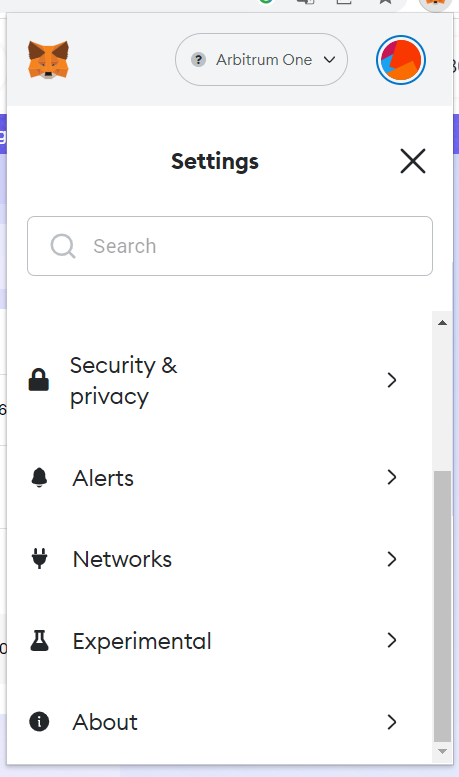
2. Once you’re in the “Settings” menu, select “Networks.”
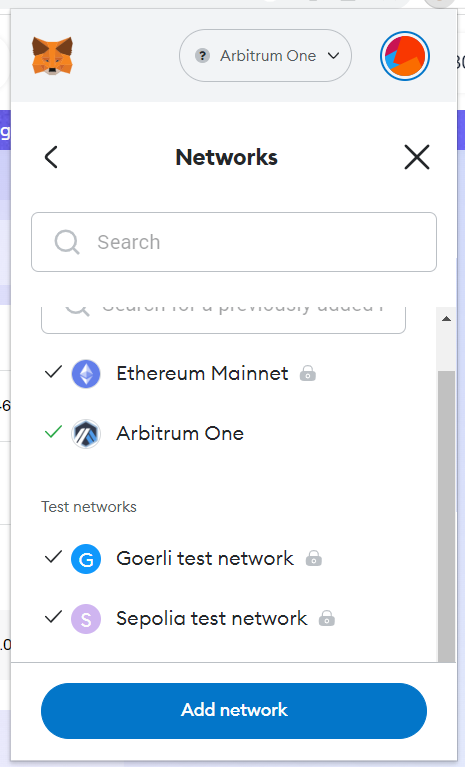
Here, you will be able to see the list of networks your MetaMask is currently configured to work with. Click “Add network” to add Polygon to your MetaMask wallet.
2. Choose the Polygon network
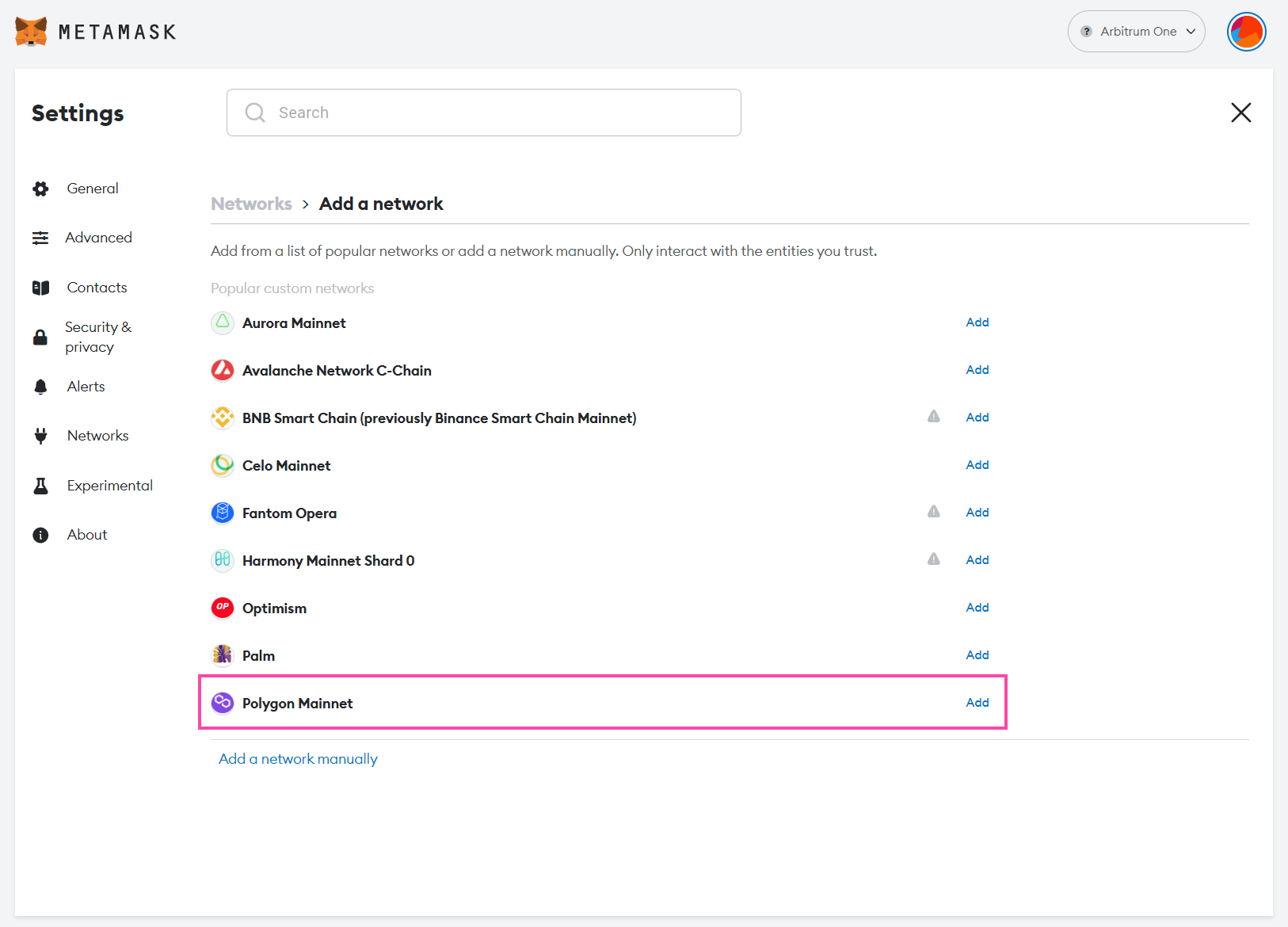
As you will be able to see, Polygon is already listed as one of the popular networks users like to use with MetaMask, which makes the process of adding it to your MetaMask even simpler. Simply click “Add” next to “Polygon Mainnet” and then click “Approve.”
3. (Optional) Add Polygon manually
If you don’t see the Polygon network on the list, don’t worry. You can easily add it manually. Click “Add a network manually” and then input the following information:
- Network name: Polygon Mainnet
- New RPC URL: https://polygon-rpc.com
- Chain ID: 137
- Currency symbol: MATIC
- Block explorer URL: https://polygonscan.com
If you provided this information correctly, MetaMask will inform you that you have switched over to the Polygon Mainnet.
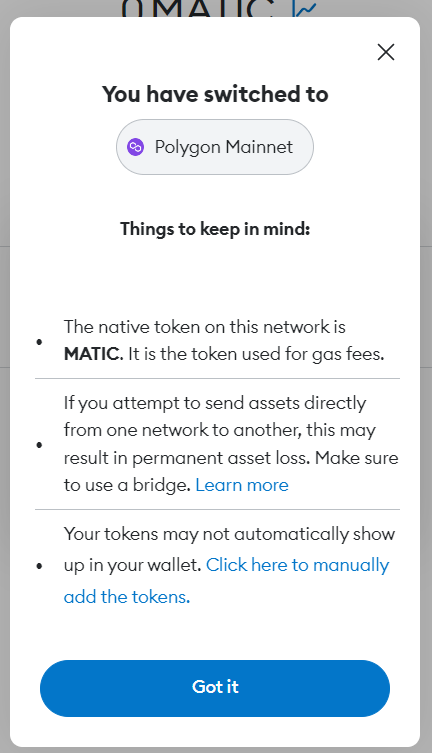
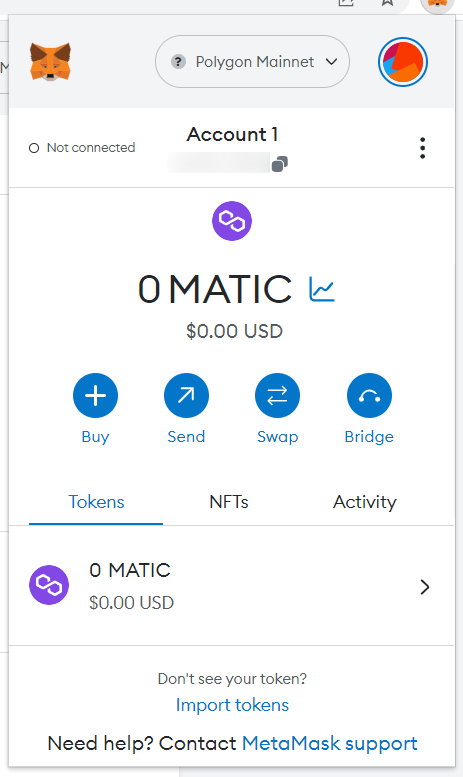
If you open up your MetaMask wallet again, you will see that the default currency has been switched from ETH to MATIC and that you’re currently using the Polygon Mainnet. If you want to switch back to Ethereum or any other network, you can easily do so using the menu at the top of the MetaMask interface.
How to add Polygon-based tokens to MetaMask?
You don’t need to add MATIC to MetaMask manually after you switch over to the Polygon network. However, you’ll need to manually add any other Polygon-based tokens that you would like to use.
Find the token’s contract address using a block explorer
In our example, we’ll add information about the USDC token on the Polygon network to our MetaMask wallet. You’ll need the token’s contract address, which you can find on any Polygon block explorer. We’ll be using the PolygonScan block explorer.
We’ll search for “USDC” on PolygonScan and head over to the first result. Under “Profile Summary,” you will be able to see the contract address. Copy it.

Import the token’s information into MetaMask
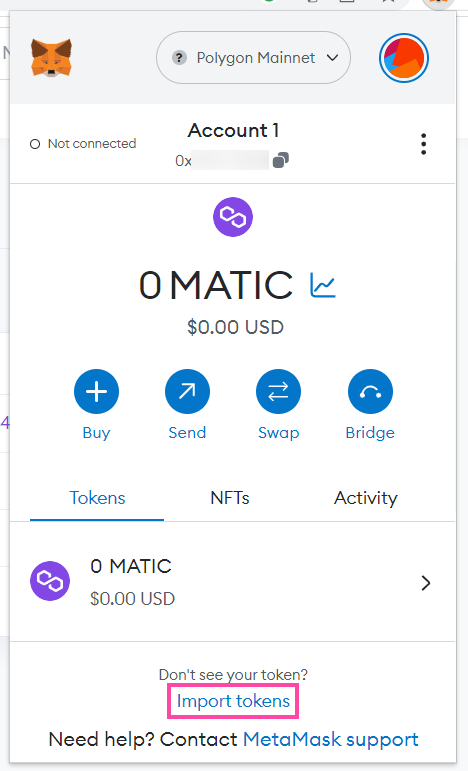
Then, head back to your MetaMask wallet and select “Import tokens.”
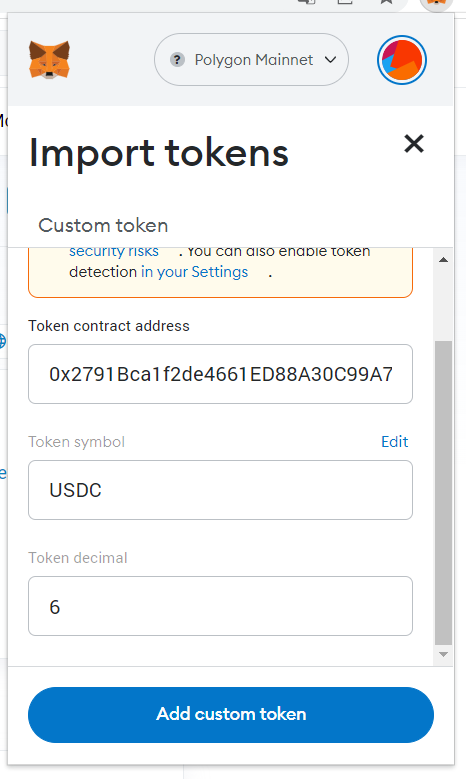
In the “Token contract address” section, paste in the contract address you copied from PolygonScan. Then, MetaMask should be able to automatically detect the token symbol (“USDC”) and decimal amount (“6”). If everything checks out, click “Add custom token.”
You can use the same process for any other Polygon-based token you would like to use. Just make sure that you find the right token on PolygonScan or some other block explorer of your choice and copy the right address.
Which other blockchains does MetaMask support?
You can use MetaMask with most blockchains that are compatible with the EVM (Ethereum Virtual Machine). Here are some examples of EVM-compatible blockchains that can be used with MetaMask.
- Polygon
- BNB Chain
- Arbitrum
- Avalanche
- Fantom
The process of adding each of these networks to MetaMask is practically the same as adding Polygon, although each network will have its own name, RPC URL, chain ID, currency symbol and block explorer URL.
The bottom line: Adding new networks to MetaMask is simple
As our guide hopefully showed, the process of adding Polygon to MetaMask is fairly simple. You can use the same process you learned here also to add other compatible networks, such as adding BNB Chain to MetaMask, for example.
Choosing the right cryptocurrency wallet is a crucial step for every cryptocurrency investor and user. If you choose to use a software wallet such as MetaMask, we recommend that you combine it with a high-quality hardware wallet. We provide a comprehensive overview of the best hardware wallets if you’re interested in learning more.