In today’s digital landscape, the integration of AI with creative tools has reshaped the boundaries of possibility. A notable advancement in this arena is the Inpainting tool by Midjourney. Catering to digital artists, graphic designers, or even those with a keen interest in technology, this guide provides a detailed overview and step-by-step walkthrough of Midjourney’s newest tool.
Understanding Inpainting
Inpainting is like the digital version of art restoration. Imagine an old painting with scratches or faded spots; traditionally, an artist would carefully fill in these imperfections, making them blend seamlessly with the surrounding details. Now, in the digital world, inpainting does a similar job for images or videos. It’s a technique that fills in missing or flawed parts with details that match the surrounding area. So, if you have a photo with an unwanted object, inpainting can “paint over” that object, making it look like it was never there.
It’s like digital reconstructive surgery for damaged artwork. Now, with Midjourney’s inpainting tool in the mix, this restoration reaches a whole new level of precision.
Why the Tool is a GameChanger
Midjourney’s Inpainting Tool has truly leveled up the creative output for the infamous image-generator. Before its introduction, artists and digital creators faced limited options when seeking alterations to an image. The most common routes were tinkering with various prompts, asking Midjourney to generate more image variations, or diving into tedious manual edits using platforms like Photoshop or other editing tools.
Now, with the Inpainting Tool, Midjourney has bridged the gap between AI-driven modifications and manual alterations. This tool allows users to seamlessly target specific areas in an image for changes, all without compromising the originality or aesthetics of the entire piece. The convenience and precision offered by this tool make it an undeniable game-changer in the world of AI-generated images.
How to Inpaint
In Midjourney, the feature designated for inpainting is labeled “Vary Region.” Utilizing Vary Region, users can select particular areas of their canvas for the bot to modify. By default, Midjourney autonomously determines the most suitable method for addressing these chosen areas. Yet, there’s an option termed “remix” that, when activated, lets users guide the modification process using a different or adjusted prompt. This offers a level of customization and flexibility in the image editing workflow. It’s important to note that the Vary (Region) feature is supported by Midjourney Model Versions V5.0, V5.1, and V5.2.
- Enable Remix Mode: Use the
/settingscommand. - Generate an Image: Begin with the /imagine command. An example prompt might be “meadow trail lithograph.”
- Upscale: Use the U buttons to improve the image’s resolution.
- Enter the Editing Interface: Click on the Vary (Region) button.
- Choose Areas for Modification: With the freehand or rectangular selection tools (found at the editor’s bottom left), select the image parts you want to change. The size of your selection can influence the final result: larger areas may result in more notable changes, while smaller ones might yield subtle edits.
- Provide Instructions: Adjust the initial prompt to specify the desired changes. It’s important to be clear in your instructions for best results.
- Submit for Processing: Click the Submit button. The image is then processed by the Midjourney Bot, and you can return to your Discord chat in the meantime.
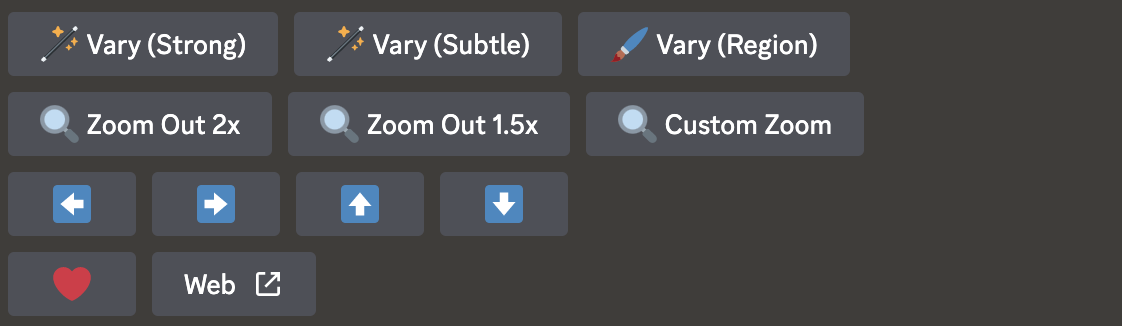
Once an image is upscaled, the “Vary Region” button becomes visible. Clicking on it triggers a popup window, enabling the initiation of the inpainting process. According to Midjourney’s official documentation, the following tab will pop up on your screen:
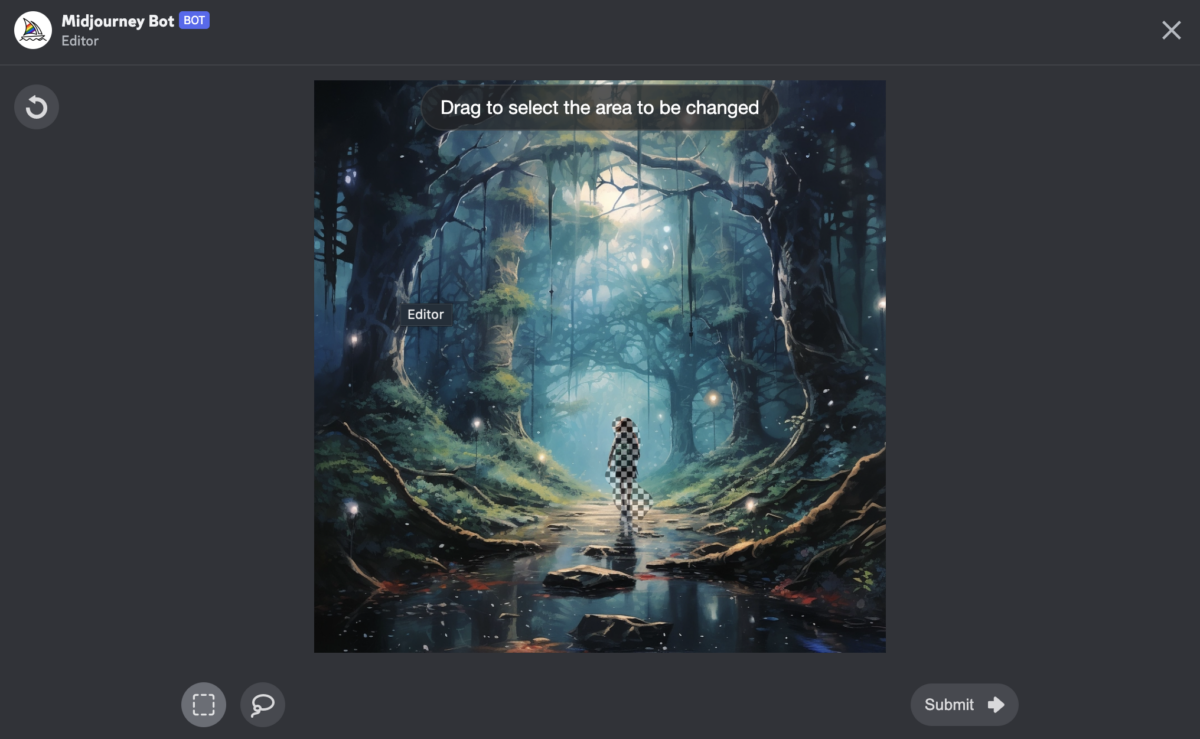
Inpainting can be used to remove unwanted items in an image or alter specific parts of the image as you’d like. It works by intelligently filling in the selected area with relevant and coherent content drawn from the surrounding parts of the image. For instance, if there’s an unwanted subject in a picturesque landscape, inpainting can seamlessly erase that subject, leaving behind a flawless panorama. What’s more impressive is the tool’s ability to modify subjects without affecting the rest of the image. So, if you wish to alter the color of a dress or character specifics within a photo, inpainting will adjust only the desired object while ensuring the rest of the illustration remains untouched. This ensures a natural and cohesive look post-edit, preserving the original essence of the image.
The Vary Region Editor in Midjourney provides a range of tools including undo, free draw, rectangle selection, and inpainting prompt, along with options for window adjustments. For optimal inpainting results, it’s recommended to focus on 20-50% of the image, though minor edits are also impactful. This versatile tool can modify emotions, introduce elements, and even change a person’s outfit.
Potential Challenges
It’s important to keep in mind that while inpainting is a robust tool, it may occasionally fall short of expectations. There might be instances where it doesn’t align with the lighting or overall context of a particular image.
It can sometimes yield unexpected or peculiar outcomes, necessitating several tries before achieving the desired result. Moreover, there’s a learning curve associated with Inpainting. New users might find that the tool doesn’t always interpret their desired changes intuitively. Factors like the chosen area’s size, shape, and positioning can all influence the tool’s output, sometimes requiring adjustments and iterations.
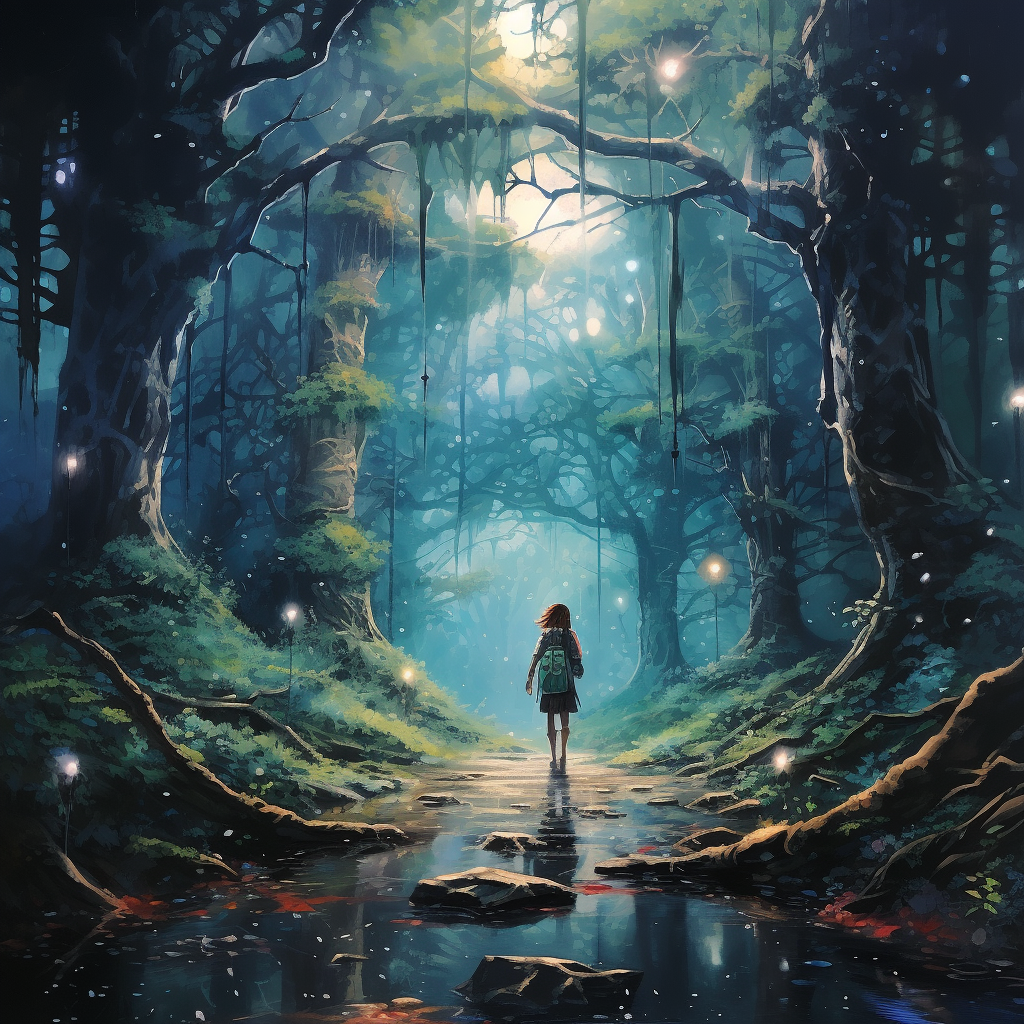
Artists and creators worldwide have continuously shared their unique findings and experimentation using the new inpainting tool since its recent announcement. Below we can see another great example of the tool recreating an entire character based off of the creator’s prompt.
Inpainting is undoubtedly powerful and can dramatically change the context and composition of images. Like any tool, it requires practice and an understanding of its quirks to master. This guide offers a comprehensive understanding of how to use the Inpainting feature in Midjourney. However, like all software tools, real mastery comes with practice and experimentation.